Google Merchant Center errors can feel intimidating when you first connect WooCommerce to Google, but most issues follow a predictable pattern. A product is usually disapproved because Google cannot understand the data, cannot match the landing page, or needs a required policy or shipping detail before the item can show. This guide explains how to diagnose the issue calmly and fix the cause instead of editing random fields until the warning disappears.
This article is a supporting troubleshooting guide for the main Google for WooCommerce plugin setup guide. Use the main guide when you need the full connection process. Use this page when the connection is already running but Merchant Center shows errors, warnings, limited visibility, or product disapprovals.
The target keyword for this article is google merchant center errors woocommerce, but the goal is not to repeat that phrase. The goal is to help store owners understand what the error means, where to check inside WooCommerce, and how to prevent the same issue from returning after the next feed sync.
Table of Contents
How Merchant Center Errors Happen in WooCommerce
WooCommerce stores send product data to Google through a feed or direct plugin integration. Google then compares that feed data with your product pages, store policies, shipping settings, tax settings, images, and account configuration. If the feed says one thing and the landing page says another, Merchant Center may flag the product. If a required attribute is missing, the item may be limited or disapproved until the data is fixed.
Beginners often focus only on the error name. A better approach is to ask three questions: is the product data complete, does it match the live WooCommerce product page, and does the Merchant Center account have the required business settings? Most feed problems can be traced back to one of those three areas.
- Feed-level issue: the product data sent from WooCommerce is missing, invalid, duplicated, or formatted incorrectly.
- Landing-page issue: Google sees a price, availability, image, or product detail on the site that does not match the feed.
- Account-level issue: shipping, returns, tax, website verification, business information, or policy settings are incomplete.
- Policy issue: Google needs more review or finds a product, claim, image, or checkout experience that violates Shopping policies.
Start With the Diagnostics Tab
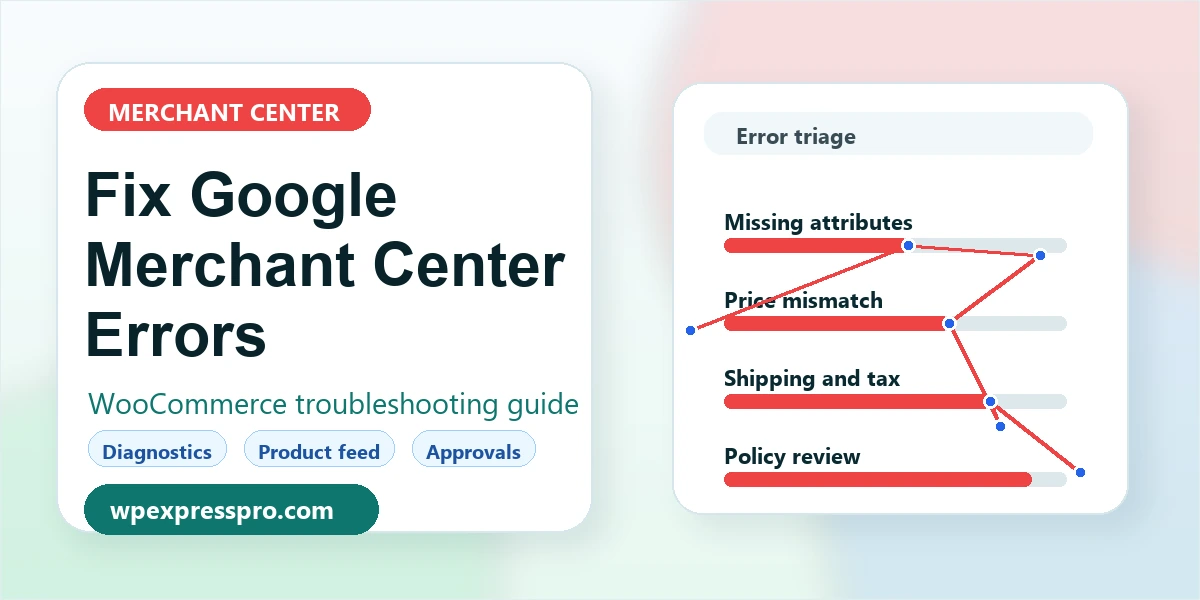
The Diagnostics area in Merchant Center should be your first stop. It groups product issues by severity and usually tells you whether the problem affects individual items, many items, or the whole account. Do not fix products one by one until you understand the pattern. If 300 products share the same error, the cause is probably a WooCommerce field, feed mapping rule, shipping setting, or plugin configuration rather than 300 separate product mistakes.
Open the issue, read the affected product examples, then compare one affected product in WooCommerce with the same product in Merchant Center. Beginners often skip this comparison and lose time. You need to see exactly what Google received and what the product page currently displays.
- Open Google Merchant Center and go to Products, then Diagnostics or Needs attention.
- Choose one high-impact issue that affects many products or prevents visibility.
- Open one affected item and note the item ID, title, price, availability, image, and landing page URL.
- Open the same product in WooCommerce and compare the fields side by side.
- Fix the source field or plugin mapping, then wait for the next feed sync or request a review where appropriate.
Common WooCommerce Merchant Center Errors and Fixes
The exact wording in Merchant Center can change, but the underlying issues are usually familiar. The table below covers common problems WooCommerce stores see after connecting products to Google Shopping surfaces.
| Error type | Likely WooCommerce cause | Beginner-friendly fix |
|---|---|---|
| Missing product identifiers | GTIN, MPN, or brand fields are empty or mapped incorrectly. | Add the correct GTIN where available. If the product has no identifier, make sure the feed handles identifier_exists correctly. |
| Price mismatch | Sale price, tax display, currency, caching, or structured data differs from the feed. | Check regular price, sale price dates, currency, tax display, and cache. Make sure the product page shows the same price Google receives. |
| Availability mismatch | Stock status changed after the feed synced, or variation availability is not mapped clearly. | Confirm stock status on the parent and variation. Resync the feed after stock updates. |
| Image issue | Image is too small, blocked, promotional, watermarked, or not reachable by Google. | Use clear product images, avoid text overlays, and confirm image URLs are publicly accessible. |
| Shipping issue | Merchant Center shipping settings are missing or do not match checkout expectations. | Set shipping in Merchant Center and confirm WooCommerce shipping zones do not create surprises at checkout. |
| Landing page not available | Product is private, blocked by robots, redirected, out of stock, or hidden behind scripts. | Make sure the product URL is public, indexable, fast, and returns the correct product page. |
Fix Missing Identifiers Without Guessing
Identifier errors are common because WooCommerce does not include every Google product attribute by default. Google often expects a GTIN for retail products that have one. For books, this could be an ISBN. For branded retail products, it may be a UPC, EAN, JAN, or another valid GTIN format. If you sell custom, handmade, private-label, or one-of-a-kind products, the fix may be different.
Do not invent GTINs. Incorrect identifiers can create more trouble than missing ones. Use the identifier printed by the manufacturer or supplier. If a product truly does not have a global identifier, make sure your feed sends the correct identifier_exists value and includes a clear brand or MPN where relevant.
Where to fix it in WooCommerce
If you use Google for WooCommerce, check the product-level Google fields and the plugin attribute mapping. If you use a feed plugin, check the feed template or attribute mapping area. For variable products, inspect each variation because identifiers often need to be set at the variation level rather than only on the parent product.
Fix Price and Availability Mismatches
Price and availability mismatch errors usually mean Google sees one value in the feed and a different value on the live landing page. In WooCommerce, this can happen because of sale schedules, currency switchers, tax settings, caching, variation logic, or stock updates that happen after the last feed sync.
Start with one affected product. Check the feed value, the product edit screen, and the public product page in an incognito browser. If the public page still shows an old price, clear page cache and object cache. If the product is variable, choose the exact variation that Google flagged because the parent product page may display a price range while the feed sends a specific variation price.
- Make sure the site currency matches the Merchant Center target country.
- Check whether WooCommerce displays prices including or excluding tax.
- Confirm sale price dates have started or ended correctly.
- Clear caching after major catalog or price updates.
- For variable products, confirm each variation has stock, price, image, and identifiers where needed.
Fix Shipping, Returns, and Account-Level Problems
Not every Merchant Center error starts inside WooCommerce. Google also needs to understand how customers receive products, what they pay for shipping, and how returns work. If shipping is missing or unclear, products can be limited even when the product feed itself looks fine.
Set shipping and return information directly in Merchant Center, then compare it with WooCommerce checkout behavior. The goal is not to copy every WooCommerce shipping zone exactly. The goal is to avoid a situation where Google promises one shipping experience and the customer sees a different one at checkout.
- Verify your website and claim it inside Merchant Center.
- Complete business information, customer service contact details, and return policy settings.
- Set shipping services for each target country.
- Confirm tax settings where applicable.
- Test checkout as a customer in your target region.
When to Request a Review
Some fixes are picked up automatically after the next crawl or feed sync. Others need a manual review request. Do not request a review until the actual cause is fixed. If you request reviews repeatedly without changing the root problem, you can slow down your own troubleshooting and make the account feel more fragile than it needs to be.
A good review request is boring: the product data is corrected, the landing page matches, policies are clear, and the site is accessible. Keep notes about what you changed. If the same issue returns, those notes help you identify whether the problem is product data, caching, or a recurring feed mapping issue.
Prevention Checklist for WooCommerce Stores
The best long-term fix is a product data workflow. Treat Merchant Center data like part of your catalog process, not like a one-time setup task. Whenever you add new products, update prices, change shipping, or add variations, ask whether Google receives the same information customers see on the product page.
- Create a required product data checklist for new items.
- Use consistent titles, categories, brand names, and identifiers.
- Avoid promotional text inside product images.
- Review Merchant Center diagnostics weekly while campaigns are active.
- Resync or regenerate feeds after bulk catalog changes.
- Document which plugin controls each Google attribute.
How This Supports the Main Google for WooCommerce Guide
Merchant Center troubleshooting is a support topic, not a replacement for the main setup guide. The setup guide explains how to connect WooCommerce to Google. This article catches the next question store owners usually ask: what should I do when Google accepts the connection but rejects or limits my products?
That makes this page useful for topical authority because it solves a specific post-setup problem. It should link back to the pillar page for the full connection workflow, while the pillar can link here for diagnostics and error repair.
Beginner Action Plan
Use this workflow when you see new Merchant Center errors and do not know where to start. It keeps the process calm and prevents random edits that create more feed problems.
- Open Merchant Center Diagnostics and sort issues by impact, not by how scary the wording sounds.
- Choose one affected product and compare the submitted feed data with the live WooCommerce product page.
- Identify whether the issue is feed-level, landing-page-level, account-level, or policy-related.
- Fix the source of truth in WooCommerce, plugin mapping, shipping settings, or Merchant Center rather than editing only one product example.
- Clear cache and resync the feed if the issue involves price, availability, or changed product data.
- Wait for reprocessing, then request a review only after the visible page and submitted data match.
What to Monitor After Publishing or Fixing
After the first cleanup, keep watching the same areas weekly. Merchant Center errors often return when catalogs, prices, or shipping settings change.
- Number of disapproved products and whether the count is rising or falling.
- Repeated errors that point to a broken product field or feed mapping rule.
- Price and availability mismatches after sales, stock changes, or cache updates.
- Shipping and return warnings after changing WooCommerce shipping zones.
- Products with limited visibility even though they are technically approved.
FAQ
Why are my WooCommerce products disapproved in Google Merchant Center?
Products are usually disapproved because required data is missing, the feed does not match the product landing page, account settings such as shipping are incomplete, or Google finds a policy issue. Start in Merchant Center Diagnostics and compare one affected item with the matching WooCommerce product.
How long does it take Merchant Center errors to clear?
Some warnings clear after the next feed sync or crawl, while policy reviews can take longer. After fixing the root issue in WooCommerce or Merchant Center, give Google time to reprocess the product before making more changes.
Should I create fake GTINs to fix identifier errors?
No. Do not invent GTINs. Use valid manufacturer identifiers where they exist. If a product truly has no global identifier, configure the feed correctly for products without identifiers.
Can cache cause Google Merchant Center price mismatch errors?
Yes. If WooCommerce, a page cache, or a CDN shows an old price after the feed updates, Google may detect a mismatch. Clear cache after major catalog, price, or sale schedule changes.
Next Step
After fixing product errors, review the full Google for WooCommerce plugin setup guide to confirm your store connection, product sync, Merchant Center settings, and campaign foundation are still aligned.