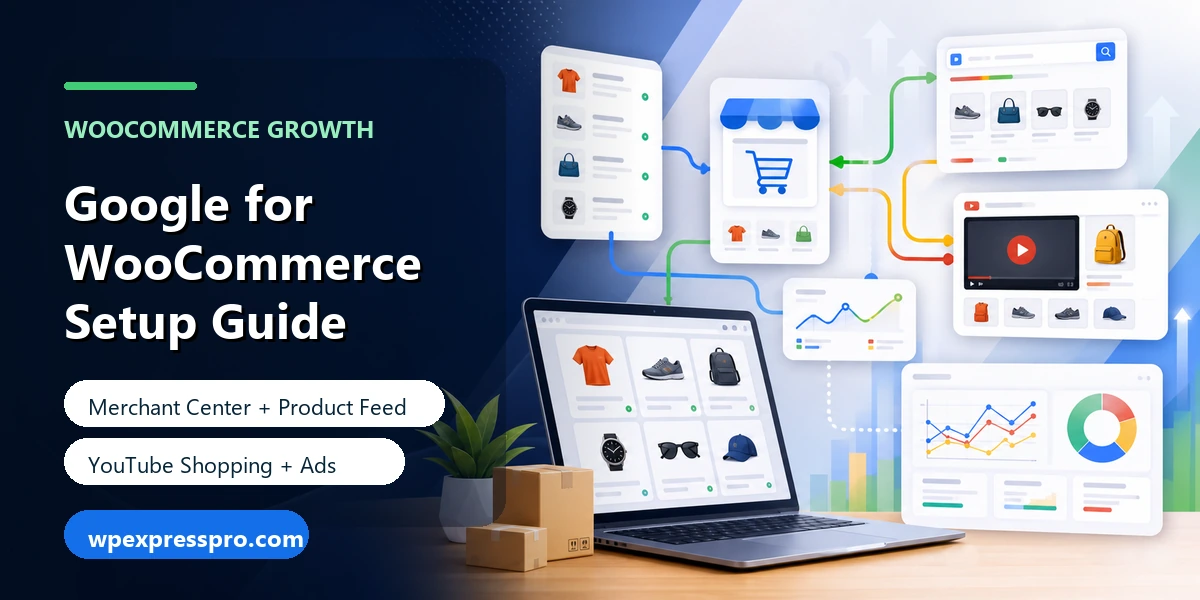
If you run a WooCommerce store, getting products in front of people on Google can be one of the fastest ways to increase visibility. The challenge is that Google Shopping, Merchant Center, product feeds, conversion tracking, and ad campaigns can feel technical when you are trying to manage products, orders, and customers at the same time.
The Google for WooCommerce plugin helps connect WooCommerce with Google Merchant Center so your products can be synced to Google and used for free listings, paid campaigns, and shopping-related placements. It is designed to reduce the manual work of maintaining a separate product feed outside WordPress.
This guide explains what Google for WooCommerce does, how it fits into Google Merchant Center, how YouTube Shopping connects to WooCommerce, and what store owners should prepare before relying on the plugin for product visibility and ads.
Table of Contents
What Is the Google for WooCommerce Plugin?
Google for WooCommerce is the official WooCommerce plugin for connecting your store with Google Merchant Center and Google Ads. The plugin was previously known as Google Listings & Ads, and the WordPress.org plugin slug still reflects that older name.
At a practical level, the plugin helps your WooCommerce product catalog communicate with Google. Instead of creating and maintaining a product feed manually, store owners can connect accounts, sync products, and manage key Google commerce features from inside the WooCommerce environment.
According to WooCommerce, the plugin helps merchants connect their stores to Google Merchant Center so products can appear across Google surfaces and be promoted through free listings or ads. That makes it useful for stores that want product visibility beyond their own website.
What It Helps You Do
- Connect WooCommerce with Google Merchant Center
- Sync WooCommerce products to Google
- Use free product listings where eligible
- Create or manage Google Ads campaigns for products
- Support conversion tracking and campaign measurement
- Prepare your store for broader Google shopping experiences, including YouTube Shopping workflows
Why Google for WooCommerce Matters for Store Growth
WooCommerce gives you control over your store, but customers still need to find your products. Google for WooCommerce helps bridge the gap between your product catalog and the places where shoppers search, compare, watch, and discover products.
For many stores, this is not only about paid advertising. Free listings can help products appear in shopping-related experiences when your product data is eligible and approved. Paid campaigns can then be layered on top when you want more control, reach, and budget-backed visibility.
The bigger benefit is workflow. If your product data lives in WooCommerce, it makes sense to manage the feed close to the source. Product titles, descriptions, pricing, availability, images, and categories all affect how Google understands and approves your products.
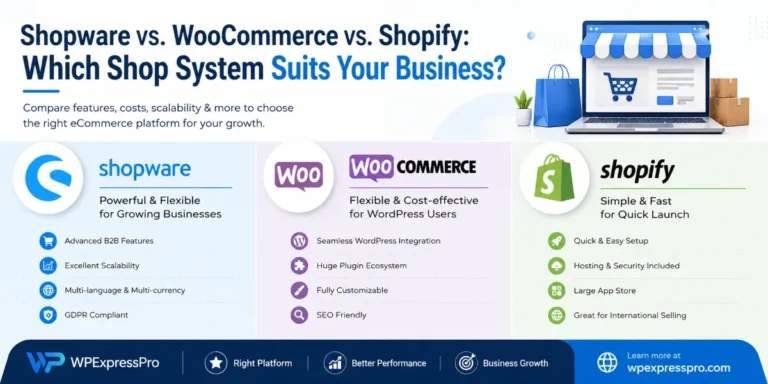
If you are still comparing commerce platforms, you may also find our guide on Shopware vs WooCommerce vs Shopify helpful before planning a long-term product visibility strategy.
Free Listings vs Paid Google Ads
One common mistake is assuming Google for WooCommerce is only an advertising plugin. It can support ad workflows, but it also helps with product visibility through free listings when your store and products meet Google’s requirements.
| Feature | Free Listings | Paid Ads |
|---|---|---|
| Main Purpose | Make eligible products discoverable across Google surfaces | Promote products with advertising budget |
| Cost | No ad spend for the listing itself | Requires Google Ads budget |
| Control | Limited control over placement and reach | More campaign control, bidding and optimization options |
| Best For | Baseline product visibility | Growth campaigns, launches and scaling sales |
| Requirement | Accurate product feed and Merchant Center approval | Merchant Center approval plus Google Ads setup |
A strong WooCommerce growth strategy often uses both. Start with clean product data and free listings, then test paid campaigns once you can track performance properly.
Google Merchant Center and Product Sync
Google Merchant Center is where Google receives, reviews, and manages product data for commerce experiences. Your WooCommerce store provides the product information, and the plugin helps sync that data into Merchant Center.
This product feed is the foundation of everything else. If your feed is weak, your listings and ads will struggle. If your feed is clean, Google has a better chance of understanding what you sell and when products are eligible to appear.
Product Data Google Usually Cares About
- Product title
- Product description
- Price and sale price
- Availability and stock status
- Product images
- Brand and identifiers when available
- Product category
- Shipping and tax settings
- Return policy and business information
The plugin can help sync data, but it cannot magically fix poor catalog quality. Store owners still need accurate product titles, useful descriptions, clean images, correct pricing, and policy details that match what customers see on the website.
YouTube Shopping and WooCommerce
Google’s shopping ecosystem is no longer only about search results. WooCommerce has also highlighted YouTube Shopping as an important channel for eligible merchants who want to connect commerce with video content.
For brands that use video, YouTube Shopping can make product discovery feel more natural. A customer may watch a product demo, tutorial, review, or launch video and then explore connected products from that experience. This is especially useful for fashion, beauty, home goods, electronics, creator-led brands, and products that benefit from visual explanation.
The important point for WooCommerce stores is that YouTube Shopping still depends on reliable product data and account setup. Your store catalog, Merchant Center connection, and eligibility requirements all matter before the video-commerce layer becomes useful.
When YouTube Shopping Makes Sense
- You already publish product videos, tutorials, demos or creator content
- Your products are visually explainable
- You want to connect shopping intent with video discovery
- Your product feed and Merchant Center setup are already clean
If your catalog data is messy, fix that before spending time on channel expansion. YouTube Shopping should build on a healthy product feed, not distract from it.
Performance Max Campaigns for WooCommerce
Google for WooCommerce can help merchants move from product sync into paid campaign workflows. In many cases, product advertising now centers around Performance Max, which uses Google’s automation to show ads across multiple Google channels.
Performance Max can be powerful, but it is not a substitute for good store fundamentals. If your product data is unclear, landing pages are slow, conversion tracking is missing, or pricing is uncompetitive, campaign automation will not solve the core issue.
Before launching paid campaigns, make sure you can answer three questions: Which products are profitable? Which audiences are most valuable? Which conversions are being tracked accurately?
Before Spending on Ads, Check This
- Merchant Center account is approved
- Product feed has no major disapprovals
- Conversion tracking is configured correctly
- Product pages load quickly on mobile
- Shipping, returns and tax settings are clear
- Top products have strong images and descriptions
Requirements Before Setting Up Google for WooCommerce
Before installing or configuring the plugin, prepare the store basics. This reduces setup friction and prevents common Merchant Center issues later.
- A live WooCommerce store with real products
- A Google account for Merchant Center and Ads access
- Accurate store contact details and business information
- Clear shipping, tax and return policies
- Product images that meet quality expectations
- Consistent product prices and availability on site and feed
- Secure checkout and working payment methods
- Privacy policy and terms pages where relevant
It is better to clean these up before connecting the plugin than to wait for product disapprovals and troubleshoot under pressure.
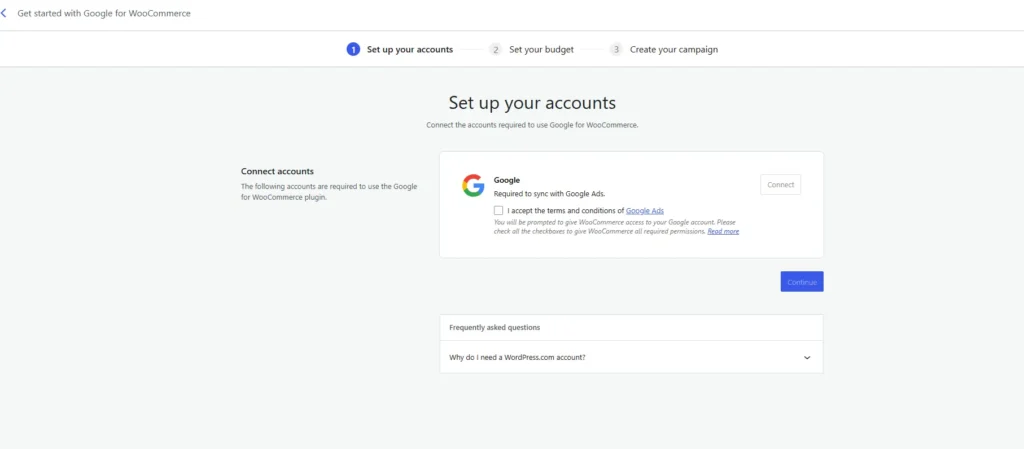
How to Set Up Google for WooCommerce
The exact setup flow can change as WooCommerce and Google update their interfaces, but the general process is consistent. The plugin connects your WooCommerce store to Google accounts, syncs product data, and helps configure commerce and advertising features.
- Install the Google for WooCommerce plugin from WordPress.org or WooCommerce.com.
- Connect the Google account you want to use for Merchant Center and Ads.
- Connect or create your Google Merchant Center account.
- Confirm store details, shipping, tax and policy information.
- Choose which products should sync to Google.
- Review product feed status and fix missing or rejected data.
- Enable free listings where eligible.
- Set up Google Ads campaigns only after tracking and feed quality are ready.
Do not rush the product review step. Most long-term problems come from weak data, not from the connection process itself.
Product Feed Approval Checklist
A clean product feed is the heart of the Google for WooCommerce setup. Use this checklist before expecting strong results from free listings, YouTube Shopping or paid campaigns.
| Feed Area | What to Check |
|---|---|
| Product Titles | Clear, descriptive, not stuffed with keywords |
| Descriptions | Useful details, benefits, specifications and accurate claims |
| Images | High-quality product images without confusing overlays |
| Prices | Match exactly between WooCommerce and Google feed |
| Availability | Stock status is current and consistent |
| Identifiers | GTIN, MPN or brand where applicable |
| Policies | Shipping, return and business policies are clear |
| Landing Pages | Fast, mobile-friendly and matching the product data |
Feed quality is not a one-time task. Whenever products, prices, stock, categories or policies change, your feed quality can change too.
Common Problems and How to Avoid Them
Google for WooCommerce simplifies the connection, but it does not remove every issue. Most problems come from product data, policy gaps, account settings or tracking mistakes.
Product Disapprovals
Disapprovals usually happen when product data does not meet Google requirements or does not match the landing page. Check titles, images, prices, availability, identifiers and policy pages first.
Mismatched Pricing or Stock
If WooCommerce shows one price and the feed shows another, products can run into issues. Keep sales, variations, tax settings and stock status accurate.
Weak Product Descriptions
Thin product copy may technically sync, but it does not help shoppers or campaigns. Add useful descriptions, specifications, use cases and differentiators.
Running Ads Too Early
Paid campaigns should come after feed quality, conversion tracking and product pages are ready. Otherwise, you can spend budget before the store is prepared to convert traffic.
Pros and Cons of Google for WooCommerce
| Pros | Cons |
|---|---|
| Official WooCommerce-supported connection to Google commerce tools | Setup still depends on Merchant Center and Google account requirements |
| Reduces manual product feed management | Feed issues can still happen when product data is weak |
| Supports free listings and paid campaign workflows | Paid ads require budget and tracking discipline |
| Useful path toward YouTube Shopping and broader Google visibility | Not every store or product is automatically eligible for every feature |
| Keeps product sync close to WooCommerce | Large or complex catalogs may still need expert feed management |
The plugin is worth using for many WooCommerce stores, but it works best when the store already has clean catalog data and reliable operations.
Is Google for WooCommerce Worth Using?
Yes, Google for WooCommerce is worth considering if you want your WooCommerce products connected to Google Merchant Center without building a custom feed workflow from scratch. It is especially useful for store owners who want a straightforward path to free listings, product sync, campaign setup and future channel expansion.
However, the plugin should not be treated as a magic growth button. It is a connector and workflow tool. Your results still depend on product quality, pricing, images, descriptions, shipping settings, landing pages, customer experience and campaign strategy.
At WPExpressPro, we recommend setting up the plugin as part of a broader WooCommerce growth plan: clean product data first, Merchant Center approval second, free listings third, and paid campaigns only after tracking and conversion basics are ready.
FAQs About Google for WooCommerce
Is Google for WooCommerce free?
The plugin is available as a free download. Free product listings may be available for eligible products, but paid Google Ads campaigns require ad spend. Some costs depend on how you use Google Ads and related services.
Do I need Google Merchant Center?
Yes. Merchant Center is where Google manages product data for shopping-related experiences. Google for WooCommerce helps connect WooCommerce product data to Merchant Center.
Can Google for WooCommerce run Google Ads?
The plugin supports Google Ads-related workflows for WooCommerce products. Before running paid campaigns, confirm that product sync, Merchant Center approval and conversion tracking are working correctly.
Does the plugin support YouTube Shopping?
YouTube Shopping is part of Google’s broader commerce ecosystem, and WooCommerce has highlighted it as a way for eligible merchants to connect products with video shopping experiences. A clean product feed and Merchant Center setup are important before using video commerce features.
Why are my products disapproved?
Common reasons include missing identifiers, poor product images, mismatched prices, unavailable products, unclear policies, restricted product categories, or product details that do not match the landing page.
Should every WooCommerce store install it?
Not always. If your store is not ready for product discovery, has weak product data, or does not have clear shipping and return policies, fix those first. The plugin is most useful when the catalog is ready for Google visibility.
Reference note: This article uses official information from the WordPress.org plugin page, the WooCommerce product page, and WooCommerce’s article about YouTube Shopping for WooCommerce.