A WordPress hosting checklist helps beginners choose hosting based on what actually affects the website: speed, uptime, security, backups, support, SSL, scalability, and how easy it is to manage the site after launch.
Many new site owners compare only the monthly price. Price matters, but the cheapest plan can become expensive if the site is slow, frequently down, difficult to migrate, or missing reliable backups.
This guide is written for WordPress website owners who want a practical decision framework. If you already have a site and want to move it safely, WPExpressPro also offers WordPress website migration and managed WordPress hosting services.
Start With the Type of Website You Are Building
A small blog, business website, membership site, online course, and WooCommerce store do not have the same hosting needs. Before choosing a plan, write down what the site must do now and what it may need in the next year.
WooCommerce, LMS, booking, directory, and membership sites need stronger dynamic performance than a simple brochure website. They also need better backups and support because transactions, logins, and customer data are involved.
- Business website or portfolio.
- Blog or content site.
- WooCommerce store.
- Membership or course website.
- Agency or client website portfolio.
Check Speed and Server Performance
Hosting is the foundation for page speed. Good optimization can improve a site, but slow servers limit everything. Look for stable server response, modern PHP support, caching, enough resources, and a setup that matches WordPress needs.
For beginners, managed hosting can remove many technical decisions. The host can help with updates, backups, caching, security, and support, so the site owner can focus on content and business operations.
| Hosting factor | Why it matters | Beginner question |
|---|---|---|
| Server response | Affects every page load. | Does the host perform well under normal traffic? |
| PHP support | Modern PHP improves compatibility and speed. | Can I use a current supported PHP version? |
| Caching | Reduces repeated processing. | Is WordPress caching included or guided? |
| Resources | Prevents slowdowns under traffic. | Does the plan fit my site type? |
Require SSL, Backups, and Security Basics
SSL is not optional for a modern WordPress website. It protects data in transit and helps users trust the site. Backups are equally important because plugin conflicts, user mistakes, malware, and failed updates can happen.
A beginner-friendly host should make SSL simple, provide automated backups, and offer clear restore options. A backup is only useful if it can be restored when you need it.
- Free or managed SSL certificate.
- Automatic daily or frequent backups.
- Easy restore process.
- Malware scanning or security monitoring.
- Firewall or server-level protection where available.
Look for WordPress-Specific Support
General hosting support may only confirm that the server is online. WordPress-specific support can help with plugin conflicts, migrations, performance questions, SSL issues, staging, and update problems.
Support quality matters most when something breaks. Before choosing a provider, check how support works, what channels are available, and whether the team understands WordPress rather than only server control panels.
- WordPress migration support.
- Plugin and theme troubleshooting guidance.
- Performance and cache help.
- Backup restore help.
- Clear escalation process for urgent issues.
Understand Storage, Bandwidth, and Traffic Limits
Unlimited hosting claims can be confusing. Every server has resource limits. Beginners should look beyond marketing words and understand storage, visits, CPU, memory, inode limits, backup storage, and email limits if email is included.
For most small sites, storage is less important than performance and support. Large image libraries, WooCommerce stores, course videos, and backup copies can increase storage needs quickly.
- How many websites are included?
- How much storage is available?
- Are backups counted in storage?
- What happens during a traffic spike?
- Are email services included or separate?
Check Staging, Migration, and Developer Features
A staging site lets you test updates before changing the live website. This is especially useful for WooCommerce, membership, and business sites where downtime can cost money.
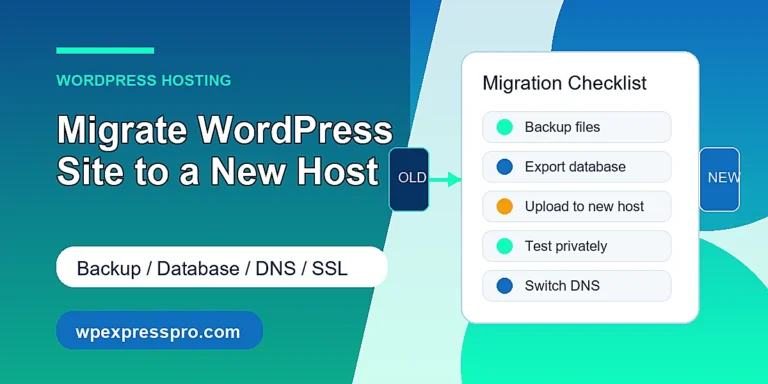
Migration support is also important. Moving WordPress manually can involve files, databases, DNS, SSL, email, redirects, and testing. A host or service provider that handles migration can reduce risk.
- One-click or managed staging.
- Safe migration support.
- SFTP or SSH access where needed.
- Database access for advanced work.
- Clear DNS and SSL guidance.
Free, Shared, VPS, and Managed WordPress Hosting
Different hosting types serve different needs. Shared hosting may work for a small beginner site. Managed WordPress hosting is usually better when you want WordPress-focused performance, security, backups, and support. VPS hosting gives more control but also more responsibility.
Do not choose the most technical option unless you have someone to manage it. A poorly managed VPS can be less reliable than a well-managed WordPress hosting plan.
| Hosting type | Best fit | Tradeoff |
|---|---|---|
| Shared hosting | Very small beginner sites. | Lower cost but fewer resources. |
| Managed WordPress hosting | Business sites, blogs, and stores needing support. | Higher cost but easier management. |
| VPS hosting | Technical teams needing control. | Requires server management skill. |
| Cloud hosting | Scalable projects. | Can be complex without management. |
Beginner Hosting Checklist
Use this checklist before buying hosting or migrating an existing site. It keeps the decision grounded in the things that matter after launch.
- Hosting matches your site type.
- Fast server response and caching support.
- Current PHP and database support.
- SSL included.
- Automated backups and easy restore.
- Security monitoring or malware protection.
- WordPress-aware support.
- Staging environment.
- Migration help.
- Clear resource limits.
- Upgrade path as traffic grows.
- No unnecessary lock-in for your domain or content.
How to Measure Results After Publishing
After publishing a page about wordpress hosting checklist, measure whether it is helping users and search engines. Do not judge the work only by a plugin score on the day of publishing. A good page should earn impressions, support internal journeys, attract relevant clicks, and help visitors take the next useful step.
Use a simple review rhythm. Check that the page is indexed, confirm the canonical URL is correct, watch Search Console queries, review engagement in analytics, and update the article when examples, screenshots, plugin details, or platform rules change. SEO work becomes stronger when it is maintained.
- Check indexing and canonical status after publishing.
- Review Search Console impressions and queries after enough data is available.
- Watch for broken internal or outbound links.
- Update the content when tools, pricing, screenshots, or best practices change.
- Compare the page against user intent, not only against an SEO score.
Simple Implementation Plan
If this topic feels large, do not try to fix everything in one sitting. Start with the pages or settings that have the highest business value, document what changed, and verify the result before moving to the next task.
- Choose one priority page, category, or workflow.
- Fix the page title, headings, structure, and internal links first.
- Add or review schema only when the visible content supports it.
- Improve performance, mobile layout, and image quality.
- Publish or schedule the update, then monitor results before scaling the same process.
Quarterly Review Routine
A quarterly review keeps the article aligned with current search expectations and real website behavior. Review the page after major WordPress, WooCommerce, Google Search, or plugin changes. You do not need to rewrite everything every quarter, but you should confirm that the advice is still accurate and the page still answers the search intent better than a thin summary.
This is especially important for topics connected to AI search, ecommerce, security, hosting, and technical SEO. Tools change, interfaces move, and recommendations can become outdated. Freshness should come from meaningful updates: clearer examples, better internal links, corrected terminology, current screenshots, stronger FAQs, and removed outdated claims.
- Check whether the title and meta description still match the real search intent.
- Refresh examples, screenshots, plugin names, and official links when needed.
- Add internal links to new related WPExpressPro guides.
- Remove outdated advice instead of adding more text on top of it.
- Confirm the page still loads quickly and works well on mobile.
How to Prioritize the Work
When time is limited, prioritize work that affects revenue, trust, and discoverability first. A small improvement on an important page is often more valuable than a perfect checklist on a page no one visits. Start with pages that already receive impressions, pages linked from your navigation, service pages, top WooCommerce categories, and articles that support your strongest commercial topics.
After that, move to supporting content and older posts. This creates a cleaner site architecture over time and helps every new post support the rest of the website instead of standing alone.
Common Mistakes to Avoid
The most common mistake is treating optimization as a one-time checklist instead of an ongoing quality process. WordPress plugins, Google documentation, AI search behavior, WooCommerce features, and user expectations can all shift. A page that was helpful last year may need clearer examples, fresher links, or cleaner structure today.
Also avoid chasing tool scores at the expense of usefulness. A technically perfect page can still fail if it does not answer the reader’s real question. Keep the writing specific, verify important claims with official sources, and remove anything that sounds impressive but does not help the visitor act.
- Do not stuff the focus keyword into every heading.
- Do not publish generic AI text without expert editing.
- Do not add schema that does not match visible page content.
- Do not ignore mobile layout, page speed, or broken links.
- Do not let outdated plugin details stay live for months.
Official Resources
Use these official resources when you want to confirm current platform rules, plugin details, or search documentation before making site-wide changes.
- WordPress security documentation
- Google SEO Starter Guide
- Google Search guidance on creating helpful content
FAQ
What should beginners look for in WordPress hosting?
Beginners should look for speed, SSL, backups, security, WordPress support, easy migration, staging, clear limits, and an upgrade path.
Is managed WordPress hosting worth it?
Managed WordPress hosting can be worth it when you want help with performance, updates, backups, security, and support instead of managing everything yourself.
Do I need SSL for WordPress?
Yes. SSL is important for trust, security, forms, login pages, ecommerce, and modern browser expectations.
How often should WordPress hosting include backups?
Most business websites should have automated daily backups at minimum. Active WooCommerce or membership sites may need more frequent backup strategies.
Can I migrate WordPress to a better host later?
Yes. WordPress can be migrated to a new host, but files, database, DNS, SSL, redirects, and testing should be handled carefully to avoid downtime.
Final Thoughts
The best WordPress hosting for beginners is not simply the cheapest plan. Choose hosting that gives your site a fast, secure, backed-up, and supportable foundation so you can grow without constantly fighting technical issues.
Need Help With Your WordPress Website?
WPExpressPro helps WordPress and WooCommerce site owners with managed hosting, website migration, speed optimization, SEO optimization, SSL security, backups, and ongoing maintenance. If your site needs a cleaner technical foundation, better content structure, or stronger performance, WPExpressPro can help you make the next improvement with less guesswork.