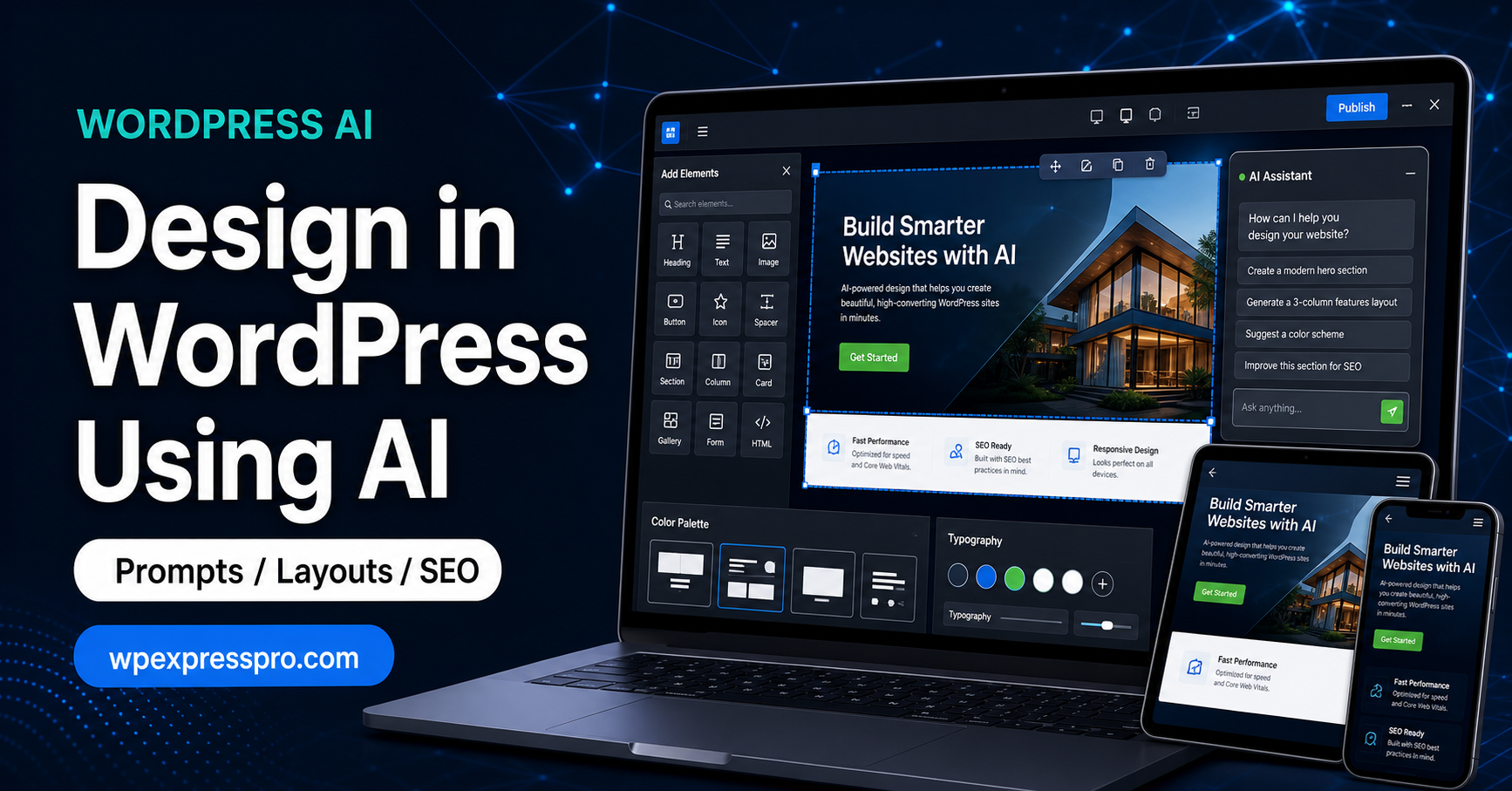
Designing a WordPress layout can feel harder than it should. You may know what your website needs to say, but turning that idea into sections, columns, images, buttons, spacing and mobile-friendly pages is where many beginners get stuck.
AI can help, but it works best when you use it as a design assistant instead of expecting it to replace the whole website process. It can suggest layouts, write page copy, generate image ideas, improve calls to action and help you plan a cleaner WordPress structure before you start dragging blocks around.
This guide explains how to design in WordPress using AI, what tools you can use, which prompts work best, and where human editing still matters for branding, SEO, speed and conversions.
If you are comparing AI workflows before building, you may also want to read our guides to the WordPress AI Website Builder, WordPress AI Assistant, and using AI in WordPress without hurting SEO.
Table of Contents
Can You Design a WordPress Website With AI?
Yes, you can use AI to design a WordPress website, but the result depends on how you use it. AI is useful for planning page structure, generating design ideas, writing first-draft copy, suggesting images, creating color directions and improving rough layouts. It is less reliable when you expect it to understand your brand, customers, offers and technical setup without clear instructions.
A recent Reddit discussion about WordPress design showed the real beginner problem clearly: layout design in WordPress can feel difficult. The practical answer is not simply “use AI.” The better answer is to use AI to create a workflow: sitemap first, page sections second, design rules third, then build and refine inside WordPress.
AI can get you past the blank screen. WordPress still needs the final work: responsive editing, real brand assets, fast-loading images, clear calls to action, SEO structure and plugin choices that do not slow the site down.
The Best Way to Use AI for WordPress Design
The best way to use AI for WordPress design is to separate planning from building. Ask AI to plan the website before you open the editor. This gives you a clearer page structure and prevents the common beginner mistake of adding random sections until the page feels crowded.
- Use AI for strategy: define the page goal, audience, sections, offer and call to action.
- Use AI for wireframes: ask for a section-by-section homepage or service page layout.
- Use AI for copy: generate headlines, body copy, button text, FAQs and meta descriptions.
- Use AI for visuals: create image prompts, icon ideas, color palette suggestions and brand mood directions.
- Use WordPress for implementation: build the final design in Gutenberg, Elementor, Divi, Blocksy or another editor you trust.
This keeps AI in the right role. It gives direction, options and drafts. You still make the final design decisions inside WordPress, where you can see spacing, mobile behavior, navigation, forms and page speed.
Step-by-Step AI WordPress Design Workflow
Here is a simple workflow beginners can use to design a WordPress site with AI without losing control of the final result.
1. Define the website goal
Before asking AI for a layout, define what the website should do. A local service website needs leads. A portfolio needs proof. A WooCommerce store needs product discovery and checkout clarity. A blog needs categories, internal links and readable article templates.
Give AI this context first. A prompt with business type, audience, location, services and conversion goal will produce better layout suggestions than a generic design request.
2. Generate a sitemap
Ask AI to suggest the pages your site needs. For a small business, that might include Home, About, Services, Service Area, Case Studies, Blog and Contact. For an ecommerce site, it may include Shop, Product Categories, Best Sellers, Shipping Policy, Returns, FAQs and Contact.
This step matters because good WordPress design is not just one homepage. The site needs a structure that visitors and search engines can understand.
3. Create section-by-section wireframes
Next, ask AI for a wireframe for each important page. You do not need a pixel-perfect design yet. You need the order of sections and the purpose of each section.
- Hero section with clear headline and call to action
- Problem or audience pain point
- Service or product overview
- Benefits and proof
- Process or how it works
- Testimonials or case studies
- FAQ section
- Final call to action
4. Choose your WordPress building method
After the structure is clear, choose where you will build. Beginners can use the WordPress block editor with a flexible theme such as Blocksy. Elementor users can use Elementor AI inside the editor to generate copy, images, code and layout ideas. Divi users can use Divi AI for page-building assistance. WordPress.com users can start with the official AI Website Builder and then customize the output.
The important rule is to avoid mixing too many builders. Pick one workflow and stay consistent. A site built with Gutenberg, Elementor and multiple design plugins at the same time can become harder to maintain and slower to load.
5. Replace generic AI content
AI copy often sounds clean but vague. Replace placeholders with real details: your services, pricing notes, location, process, examples, guarantees, team information and customer proof. If every competitor could use the same paragraph, it is not specific enough yet.
6. Check mobile layout
Many WordPress designs look fine on desktop and weak on mobile. After building the page, check headings, buttons, columns, image crops, spacing and navigation on a phone-sized preview. AI can suggest a layout, but WordPress controls how that layout behaves at different screen sizes.
AI Prompts for WordPress Layout Design
Better prompts create better design direction. Use prompts that include the website type, target audience, style, sections and conversion goal.
Homepage layout prompt
Prompt: Create a homepage wireframe for a WordPress website for [business type]. The target audience is [audience]. The goal is to get visitors to [main action]. Include section order, headline ideas, CTA text, image suggestions and notes for mobile layout.
Service page prompt
Prompt: Design a service page structure for [service] on a WordPress website. Include a hero section, pain points, benefits, process, proof, FAQ and final CTA. Make the layout suitable for SEO and lead generation.
Brand style prompt
Prompt: Suggest a visual direction for a WordPress website in the [industry] niche. Recommend colors, typography style, image style, button style and spacing rules. Keep it modern, professional and easy to read.
Layout improvement prompt
Prompt: Review this WordPress page structure and suggest improvements for clarity, trust, conversions, SEO and mobile readability: [paste page outline or content].
AI Tools You Can Use With WordPress
There are several ways to bring AI into a WordPress design workflow. The right tool depends on whether you use WordPress.com, self-hosted WordPress, Gutenberg, Elementor, Divi or a design-first workflow like Figma.
| Tool or workflow | Best for | What to watch |
|---|---|---|
| WordPress.com AI Website Builder | Creating a first version of a WordPress.com site from a prompt | Plan limits, customization needs and final SEO review |
| WordPress AI Assistant | Editing content and working inside WordPress.com | Availability depends on WordPress.com plan and feature access |
| Elementor AI | Generating text, images, code and layout ideas inside Elementor | Credit usage, plugin weight and consistent design control |
| Divi AI | Assisted page building for Divi users | Best if the site is already committed to Divi |
| ChatGPT or Claude | Planning, wireframes, copy, prompts and content structure | Output must be implemented manually and fact-checked |
| Figma plus AI | Design-first workflows before WordPress implementation | Requires a clean handoff into WordPress |
For self-hosted WordPress, a practical beginner setup is simple: use AI for planning and copy, use a fast theme or builder for page creation, and use Rank Math or another SEO tool to review metadata and structure before publishing.
What AI Can and Cannot Do Well
AI is strong at producing options quickly. It can give you three homepage structures, ten headline variations, an FAQ section, image prompts and a basic content plan in minutes. That speed is useful when you are blocked or unsure where to start.
AI is weaker at judgment. It may create a layout that looks reasonable but does not match your audience, product, market or brand. It may suggest too many sections, generic icons, vague copy or images that look polished but say very little.
The safest approach is to let AI create the first draft, then evaluate the design with business questions: Does the page explain the offer clearly? Is the next step obvious? Is the copy specific? Is the mobile version readable? Does the page load quickly? Does the design build trust?
Common Mistakes to Avoid
- Publishing the first AI draft: always rewrite generic sections and add real business details.
- Using too many plugins: extra AI, design and animation plugins can slow down WordPress.
- Ignoring mobile design: check columns, buttons, menus and image cropping on small screens.
- Choosing style before structure: define the page goal and section order before colors and images.
- Using vague AI images: visuals should support the offer, product, service or brand story.
- Forgetting SEO: AI design still needs headings, internal links, metadata, schema and useful content.
SEO and Performance Checklist Before Publishing
An AI-designed WordPress page should still pass a basic SEO and performance review before it goes live. This is especially important for business websites, service pages and WooCommerce stores where design affects traffic and conversions.
- Use one clear H1 that matches the page topic.
- Add descriptive H2 headings for major sections.
- Write a unique SEO title and meta description.
- Compress images and avoid oversized hero graphics.
- Add internal links to relevant posts and service pages.
- Check button text and contact forms on desktop and mobile.
- Remove unused sections, stock-like copy and duplicate CTAs.
- Test Core Web Vitals after adding plugins, images or animations.
- Review accessibility basics such as contrast, alt text and keyboard-friendly navigation.
If the site is built for search traffic, connect the design process with your content strategy. A good-looking page is useful, but a page that answers a specific search intent and loads quickly has a better chance of performing over time. For deeper optimization, review our guide on making WordPress content appear in AI search results and the WordPress hosting checklist before launch.
FAQ: Designing in WordPress With AI
Can AI build a complete WordPress website?
Yes, some tools can create a first version of a WordPress website from a prompt. However, you should still review layout, copy, mobile design, SEO, performance and business accuracy before publishing.
What is the easiest way to design WordPress pages with AI?
The easiest workflow is to ask AI for a page outline and wireframe, then build that structure inside Gutenberg, Elementor, Divi or another WordPress editor. This gives you AI speed without losing control of the final page.
Is AI design good for WordPress SEO?
AI design can help with structure and content ideas, but SEO still depends on search intent, headings, metadata, internal links, page speed, useful content and technical setup.
Should beginners use WordPress.com AI Builder or self-hosted WordPress?
WordPress.com AI Builder is easier for beginners who want a guided setup. Self-hosted WordPress gives more control over hosting, plugins and custom development, but it requires more setup and maintenance.
Final Takeaway
You can design in WordPress using AI, but the best results come from a guided workflow. Use AI to plan your pages, create wireframes, draft copy, suggest visuals and improve structure. Then use WordPress to build, test and refine the final website.
AI is excellent for momentum. Human judgment is still needed for brand quality, trust, SEO, speed, accessibility and conversion. If you combine both, WordPress design becomes much easier without turning your site into a generic AI-generated template.
Sources checked: Reddit r/webdesign discussion, WordPress.com AI Website Builder support guide, WordPress AI Assistant announcement and Elementor AI documentation.